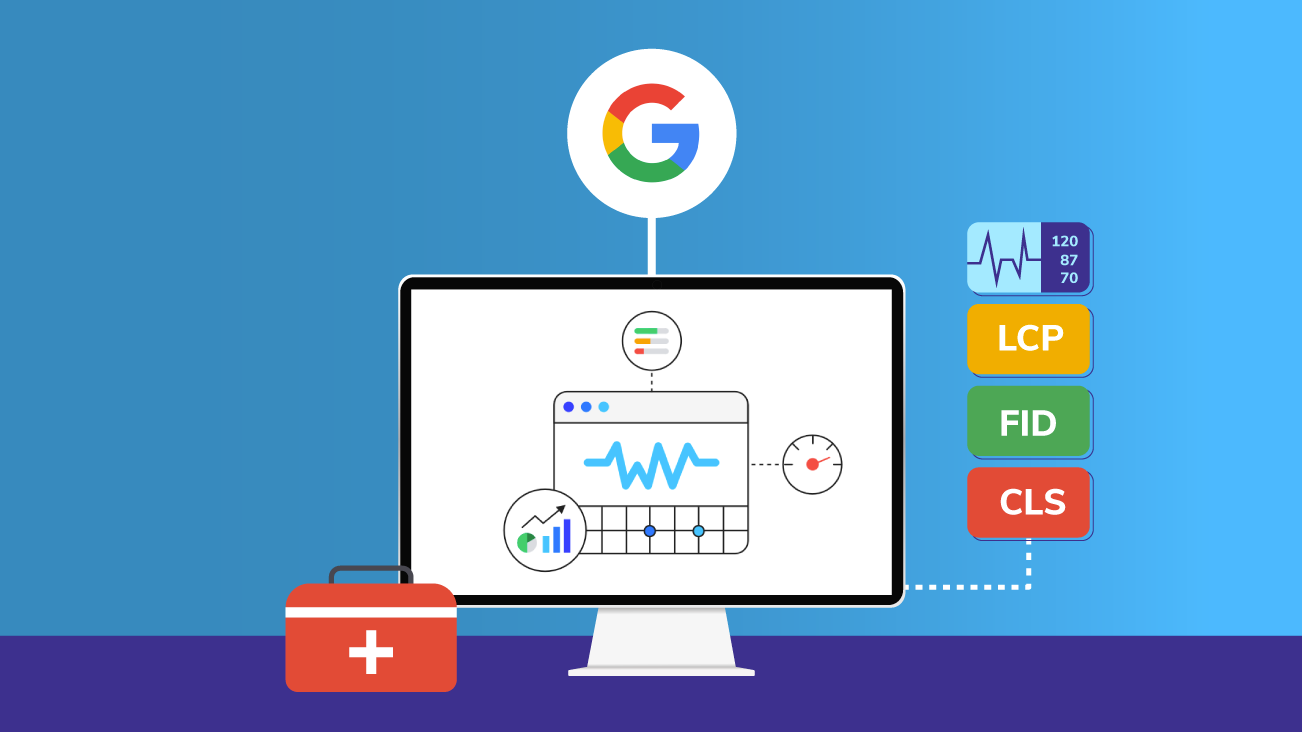
Core Web Vitals are Google's three official page experience metrics — Largest Contentful Paint (LCP), First Input Delay (FID), and Cumulative Layout Shift (CLS) — and they are a confirmed ranking factor in Google Search. If you have ever wondered why a technically correct, well-written page struggles to rank, poor Core Web Vitals scores may be part of the answer. This beginner's guide explains what each metric measures, what scores you need to reach, and exactly what to do to improve them — without needing a developer on call.
Google uses Core Web Vitals to measure real user experience on your pages. A page that loads fast, responds quickly to clicks, and stays visually stable as it loads is rewarded. A page that is slow, unresponsive, or jumps around as it loads is penalised — even if the content itself is excellent.
This guide covers what Core Web Vitals are, how each of the three metrics — LCP, FID, and CLS — is measured, what the good/needs improvement/poor thresholds are, and specific, actionable fixes for each one. You will also learn which tools to use to measure your scores and how to track improvements over time.
What Are Core Web Vitals?
Core Web Vitals are a subset of Google's page experience signals — a set of real-world performance metrics that measure how users actually experience your page, not just how fast a server responds. Google introduced them as a ranking signal in 2021 and has continued to refine how they are weighted and measured since.
There are three Core Web Vitals, each measuring a different dimension of page experience:
Google measures Core Web Vitals using field data — real user interactions captured via Chrome browsers — rather than synthetic lab tests. This means the scores in Google Search Console reflect how actual visitors experience your pages, not just how your page performs on a server in ideal conditions.
Google uses the 75th percentile of your field data — meaning 75% of real visits to a URL must meet the "Good" threshold for that page to pass. A handful of fast users cannot mask a slow experience for the majority of your visitors.
Largest Contentful Paint (LCP): What It Is and How to Fix It
LCP measures how long it takes for the largest visible content element on the page to fully load. This is usually a hero image, a large heading, a featured photo, or a video thumbnail — whatever takes up the most space above the fold when the page first renders.
A good LCP score is 2.5 seconds or under. If your LCP is above 4 seconds, Google classifies it as poor and it can negatively affect your rankings for that URL.
What causes poor LCP?
- Slow server response times — if your server takes a long time to deliver the initial HTML, everything downstream is delayed
- Render-blocking resources — CSS and JavaScript files that must load before the browser can paint any content
- Unoptimised images — large, uncompressed image files that are the LCP element take a long time to load
- No preloading of the LCP element — the browser discovers the LCP image late in the loading waterfall
- Third-party scripts — analytics, chat widgets, and ad scripts that block the main thread and delay rendering
How to improve LCP
-
1Optimise and compress your LCP imageConvert hero images to WebP or AVIF format. These modern formats are typically 30–50% smaller than JPEG at the same visual quality. Use a tool like Squoosh or your CMS's built-in image optimisation. Set the correct
widthandheightattributes on the image element to prevent layout shift during load. -
2Preload the LCP elementAdd a
<link rel="preload">tag in your<head>pointing to the LCP image. This tells the browser to start fetching it immediately, rather than discovering it partway through parsing the page. For the hero image on this page, that means:<link rel="preload" as="image" href="your-hero.webp">. -
3Use a fast hosting provider and enable a CDNYour server's Time to First Byte (TTFB) directly impacts LCP. Switch to a provider with low TTFB (under 200ms is good). Use a Content Delivery Network (CDN) like Cloudflare to serve assets from servers close to each visitor's location — reducing latency significantly for international visitors.
-
4Eliminate render-blocking CSS and JavaScriptDefer non-critical JavaScript using the
deferorasyncattribute. Inline the critical CSS required to render above-the-fold content and load the rest asynchronously. Most page-builder plugins and WordPress performance plugins (like WP Rocket or LiteSpeed Cache) handle this automatically. -
5Enable browser caching and server-side cachingSet long cache lifetimes for static assets (images, CSS, JS) so returning visitors do not re-download them. Enable server-side page caching so your server delivers pre-built HTML rather than building the page from scratch on every request — critical for WordPress and similar CMS sites.
Set fetchpriority="high" on your LCP image element. This attribute, now supported in all major browsers, signals to the browser that this image should be fetched with the highest network priority — ahead of other images on the page. It is one of the easiest single-line improvements for LCP with no downside.
First Input Delay (FID): What It Is and How to Fix It
FID measures the time from when a user first interacts with your page — clicks a link, taps a button, uses a form — to when the browser actually begins processing that interaction. A good FID is 100 milliseconds or under.
High FID happens when the browser's main thread is busy — usually executing JavaScript — at the exact moment a user tries to interact. The browser queues the input and processes it once the main thread is free, but the user experience feels broken: they click something and nothing happens for a fraction of a second.
Google replaced FID with Interaction to Next Paint (INP) as the official Core Web Vital for interactivity in March 2024. INP measures all interactions throughout the page session, not just the first. However, the fixes that improve FID also improve INP — reducing JavaScript execution time and main thread blocking improves both. The good threshold for INP is 200ms or under.
What causes poor FID (and poor INP)?
- Large JavaScript bundles — too much JS parsing and executing on page load blocks the main thread
- Third-party scripts — chat widgets, advertising scripts, and social media embeds are common culprits
- Long tasks — individual JavaScript tasks that run for more than 50ms block input processing
- Too much JavaScript executing on load — code that should run lazily running immediately at page load
How to improve FID and INP
- Break up long tasks: Split JavaScript functions that execute for more than 50ms into smaller chunks using
setTimeout,requestAnimationFrame, or the Scheduler API. This gives the browser time to process user input between task chunks. - Defer non-critical JavaScript: Any JS that does not affect the initial render should load after the page is interactive. Add
deferto script tags and move non-critical initialisation code into aDOMContentLoadedorloadevent listener. - Remove or replace heavy third-party scripts: Audit every third-party script on your page. Replace real-time chat widgets with lightweight alternatives, load social share buttons as simple links instead of full embeds, and use the Partytown library to run third-party scripts in a web worker off the main thread.
- Use a web worker for intensive operations: Move computation-heavy tasks (data processing, sorting, filtering) off the main thread into a web worker so they do not block user interactions.
- Minimise unused JavaScript: Use code splitting and tree shaking in your build process to ship only the JavaScript each page actually needs. Tools like Webpack, Rollup, and Vite handle this automatically when configured correctly.
Cumulative Layout Shift (CLS): What It Is and How to Fix It
CLS measures visual stability — how much the page content shifts around unexpectedly while it loads. Every time an element moves position during loading and displaces other content, it contributes to your CLS score. A good CLS score is 0.1 or under.
High CLS is one of the most frustrating user experiences on the web: you start reading an article, an ad loads and pushes the text down, and you lose your place. Or you go to tap a button and the page jumps — your tap lands on the wrong element. This is exactly what CLS measures and what Google penalises.
What causes high CLS?
- Images without width and height attributes — the browser does not know how much space to reserve for the image, so the layout shifts when the image loads
- Ads, embeds, and iframes without reserved space — injected content that expands and pushes surrounding content down
- Web fonts causing FOUT/FOIT — Flash of Unstyled Text or Flash of Invisible Text when custom fonts load
- Dynamically injected content — banners, cookie notices, and notifications inserted above existing content after load
- Animations using layout-triggering CSS properties — animating
top,left,margin, orwidthinstead oftransform
How to improve CLS
-
1Always set width and height on images and videosAdd explicit
widthandheightattributes to every<img>and<video>element. This allows the browser to calculate the correct aspect ratio and reserve the exact right amount of space before the file loads — eliminating layout shift caused by media loading in. -
2Reserve space for ads and embedded contentSet a fixed minimum height on ad slots, iframes, and embeds using CSS (
min-height). This tells the browser to hold that space even before the ad content loads. For responsive ads, use an aspect-ratio container. Never inject ads above existing content after the page has rendered. -
3Use font-display: swap and preload key fontsAdd
font-display: swapto your@font-facedeclarations so the browser renders text in a fallback font immediately, then swaps to your custom font when it loads — instead of showing invisible text. Preload your most important font files using<link rel="preload" as="font">to reduce the swap time. -
4Avoid inserting content above existing contentCookie consent banners, notification bars, and live chat bubbles that appear above existing content after load all cause CLS. Position these elements as overlays (fixed or absolute positioning) that do not displace other content, or reserve their space in the initial HTML layout.
-
5Use CSS transform for animationsWhen animating elements, use CSS
transformandopacityinstead of layout-triggering properties liketop,left,margin, orheight. Transform-based animations run on the GPU and do not cause reflows — they contribute zero CLS and perform better.
How to Measure Your Core Web Vitals Scores
You need both lab tools (for debugging) and field data tools (for actual scores) to fully understand your Core Web Vitals performance. Here is where to look:
- Google Search Console — Core Web Vitals report: The most important source. Shows real field data from Chrome users, broken down by URL group and device type. Found under Experience → Core Web Vitals in the left sidebar.
- PageSpeed Insights (pagespeed.web.dev): Combines field data from the Chrome User Experience Report (CrUX) with a Lighthouse lab audit. Shows both real-world scores and diagnosed issues. The starting point for most optimisation work.
- Chrome DevTools — Performance tab: Records a detailed waterfall of every network request, rendering event, and main thread task. Essential for diagnosing LCP and FID/INP root causes at a technical level.
- Lighthouse (Chrome extension or CLI): Lab-only tool. Useful for catching issues before publishing — does not reflect real user data but runs fast and is actionable.
- web-vitals JavaScript library: Embed Google's own
web-vitalslibrary to measure LCP, FID, INP, and CLS from your own users and send the data to your analytics platform.
Start with PageSpeed Insights for a quick overview, then use Google Search Console to understand which specific URL groups are failing — and on which device type. Mobile Core Web Vitals scores are almost always worse than desktop, and Google uses mobile scores for mobile search rankings.
How Core Web Vitals Affect Your SEO Rankings
Core Web Vitals are a confirmed Google ranking signal — but they are one signal among many. A page with excellent Core Web Vitals scores will not outrank a page with far more relevant, authoritative content just because of performance. However, where two pages are otherwise equal in quality and relevance, the page with better Core Web Vitals scores will rank higher.
The more practical SEO impact of Core Web Vitals is indirect: poor scores increase bounce rates and reduce time on page, which feeds negative engagement signals back to Google. A page that takes 6 seconds to load and shifts around as it does so will lose visitors before they engage with your content — regardless of how good the content is.
Core Web Vitals have the greatest ranking impact in competitive niches where multiple pages are similarly well-optimised for content and backlinks. In less competitive niches, content quality and backlinks typically matter more. But poor Core Web Vitals can suppress rankings even with good content — so treating them as a hygiene baseline rather than a primary lever is the right mental model.
Core Web Vitals and mobile SEO
Google indexes and ranks your site based on its mobile version (mobile-first indexing). Mobile devices are more constrained in processing power and often on slower connections, so Core Web Vitals scores are consistently worse on mobile than desktop. Prioritise fixing mobile scores first — they are the ones that matter for rankings.
Improving Core Web Vitals on WordPress
WordPress powers the majority of websites on the internet, and it is also one of the most common sources of Core Web Vitals problems — primarily because of theme bloat, plugin overhead, and unoptimised images. The good news is that the fixes are well-documented and largely plugin-driven.
WordPress performance plugins that help
- WP Rocket — the most comprehensive premium option. Handles caching, lazy loading, CSS/JS optimisation, and CDN integration in one plugin.
- LiteSpeed Cache — free and extremely powerful for sites on LiteSpeed servers (most managed WordPress hosts). Handles almost every CWV issue automatically.
- Autoptimize — free plugin for CSS and JS minification and concatenation. Pair with a separate caching plugin.
- Smush or ShortPixel — automatic image compression and WebP conversion on upload, reducing LCP image file sizes without manual work.
Core theme and hosting choices
Your WordPress theme has a major impact on Core Web Vitals. Lightweight themes like Kadence, GeneratePress, and Astra are built with performance in mind and typically score well out of the box. Heavy page-builder themes that load large CSS frameworks and JavaScript bundles on every page will make hitting good CWV thresholds significantly harder.
Managed WordPress hosts like Kinsta, WP Engine, and Cloudways are optimised for WordPress performance at the server level — with built-in caching, CDNs, and server-side configurations that shared hosting cannot match.
Run a Technical SEO Audit Alongside Your CWV Work
Core Web Vitals are part of a broader technical SEO picture. While improving LCP, FID, and CLS, it is worth auditing other on-page technical factors that affect how Google crawls, indexes, and ranks your pages.
Use the SEOGuy SEO Analyzer to audit any URL for missing meta tags, broken elements, and crawlability issues that may be undermining your rankings alongside your Core Web Vitals work. Make sure the pages you are optimising for performance also have well-written title tags and meta descriptions — the SEOGuy Meta Tag Generator helps you craft these quickly and correctly.
Once you have improved your page speed and on-page elements, adding structured data helps your pages stand out in search results. Use the SEOGuy Schema Markup Generator to add valid JSON-LD schema to your best-performing pages.
Check Your Technical SEO Health Now
Core Web Vitals are just one part of technical SEO. Use the free SEOGuy SEO Analyzer to audit any URL for on-page issues, missing meta tags, and crawlability problems that may be holding your rankings back.
Run a Free SEO AuditTools You Can Use on SEOGuy.Online
Improving Core Web Vitals is most effective when paired with solid on-page technical SEO. These free tools from SEOGuy.Online help you cover both sides:
Key Takeaways
- Core Web Vitals (LCP, FID/INP, and CLS) are a confirmed Google ranking signal that measures real user experience
- LCP measures loading speed — aim for under 2.5 seconds; fix it with image optimisation, preloading, and a fast CDN
- FID measures interactivity delay — aim for under 100ms; fix it by reducing JavaScript execution on the main thread
- Google replaced FID with INP in 2024 — the same fixes apply; target under 200ms for INP
- CLS measures visual stability — aim for 0.1 or under; fix it by setting image dimensions, reserving ad space, and avoiding content injection
- Google measures Core Web Vitals using field data from real Chrome users at the 75th percentile — lab tools alone are not enough
- Start measurement with PageSpeed Insights and Google Search Console's Core Web Vitals report
- Mobile Core Web Vitals scores matter most for rankings — prioritise mobile optimisation
- WordPress users: use a lightweight theme and a performance plugin (WP Rocket, LiteSpeed Cache) to address most issues
- Core Web Vitals are a hygiene baseline — good content and backlinks still matter more in most competitive niches
- Combine Core Web Vitals improvements with on-page technical SEO audits for maximum ranking impact
Optimizing Core Web Vitals — LCP, FID, and CLS — is no longer optional for sites serious about SEO. The fixes are concrete and achievable for most websites without a full engineering team. Start by running PageSpeed Insights on your most important pages, identify the biggest failing metric, and work through the relevant fixes above one by one. Consistent improvement across all three Core Web Vitals creates a measurable, lasting advantage in search.